Convert to PDF
Choose a source format. Local tools stay private in your browser; Office and web captures are securely processed.
Pick the converter for your file
Documents, spreadsheets, and slides: use Word to PDF, Excel to PDF, or PowerPoint to PDF for Microsoft Office files, and ODT, ODS, or ODP to PDF for files saved by Apache OpenOffice and other free office suites. RTF to PDF covers WordPad and older editors.
Photos and scans: Image to PDF takes up to 40 images at once, including JPG, PNG, WEBP, GIF, BMP, TIFF, AVIF, and the HEIC photos an iPhone saves by default.
Web pages: URL to PDF captures a public page from its address, and HTML to PDF converts an HTML file or markup you paste in. EPUB to PDF turns an ebook into paginated pages you can print or annotate.
Plain data: TXT to PDF lays out a text file on clean pages, CSV to PDF turns a table export into a readable document, and ZIP to PDF unpacks the JPG, PNG, and PDF files inside a ZIP and joins them into one PDF.
Which converters run in your browser
Image to PDF, TXT to PDF, CSV to PDF, and ZIP to PDF work entirely on your device. The file is read and turned into a PDF inside your browser, so nothing is uploaded, and they keep working on a slow connection.
Office files, OpenDocument files, RTF, EPUB, HTML, and web page captures need a secure server to keep the layout faithful. Those files are sent over an encrypted connection, used only for that job, and deleted within 1 hour.
Turning photos into a PDF
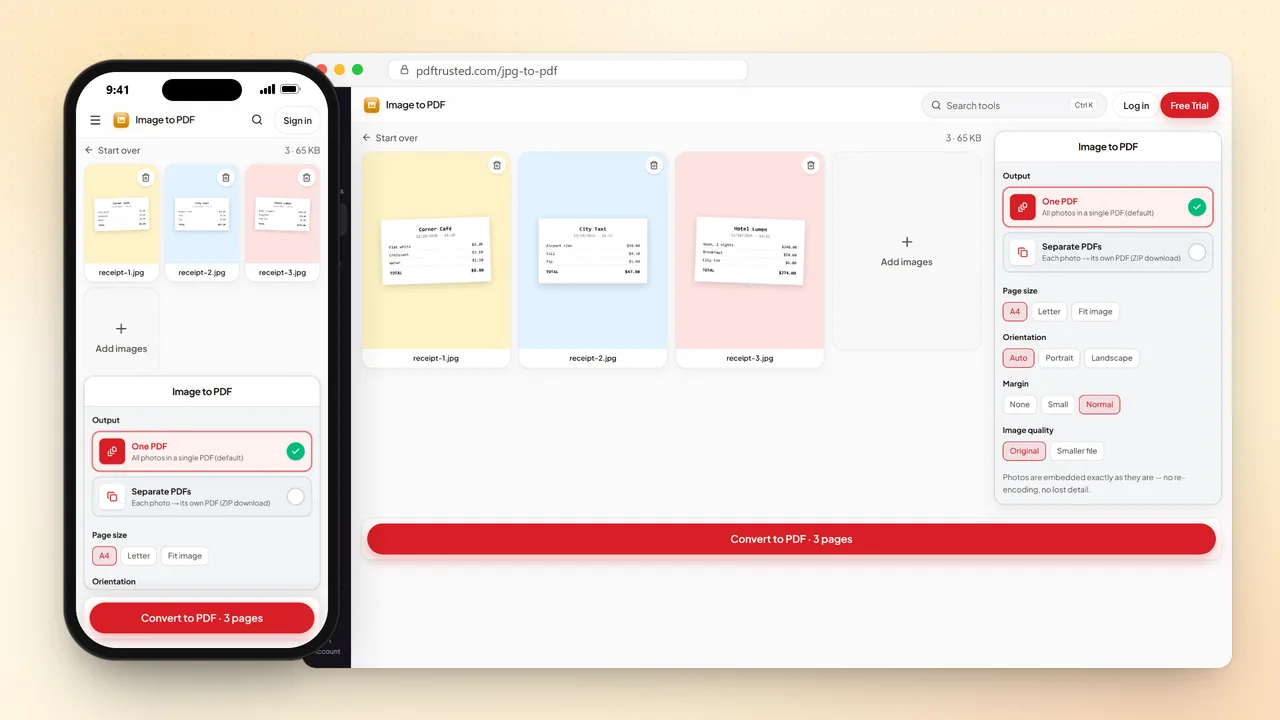
Add your photos in the order you want the pages; you can remove any photo before converting and add more with the Add images tile. Choose One PDF to put every photo in a single file, or Separate PDFs to get one PDF per photo in a ZIP download.
Page size can be A4, Letter, or Fit image, which makes each page exactly the size of its photo. Orientation can follow each photo automatically or be fixed to portrait or landscape, and margins can be none, small, or normal.
Image quality Original embeds each photo exactly as it is, with no lost detail. Choose Smaller file when the PDF has to fit an email or an upload portal with a size limit.
Saving a web page as a PDF
URL to PDF works with pages anyone can open without signing in. For a page behind a login, such as an order confirmation, save it as an HTML file from your browser and use HTML to PDF instead.
HTML to PDF accepts an .html or .htm file, or markup you paste into the box. Pasting is handy when you only have a snippet, such as an email template or a receipt, and want to keep it as a document you can print or attach.
After you convert
Every result can go straight into the next tool without a new upload: Compress PDF to make it smaller, Merge PDF to join it with other files, Sign PDF to add your signature, or Protect PDF to lock it with a password.
Frequently asked questions
- Which converter should I use for iPhone photos?
- Image to PDF. It accepts the HEIC photos an iPhone saves by default as well as JPG and PNG, and it runs in your browser, so the photos are not uploaded.
- Can I turn several files into one PDF?
- Image to PDF combines up to 40 photos into one PDF, and ZIP to PDF joins the images and PDFs inside a ZIP. For documents, convert each one, then join the results with Merge PDF.
- Why can't URL to PDF open my page?
- It can only capture pages that are public. Pages behind a login, a paywall, or a cookie wall show the capture a different page. Save the page as HTML from your browser and use HTML to PDF instead.
- Will the text in my PDF be searchable?
- Yes for documents, ebooks, web pages, text, and CSV files, because their text stays real text. Photos and scans become image pages; run OCR PDF afterwards to make their text searchable.
- Is there a watermark?
- No. Every converter returns a clean PDF with nothing added to your pages.
- Do I need an account?
- Not for everyday use. Free use includes a daily allowance, and the Pricing page shows what each plan includes if you convert a lot or work with long documents.